There are multiple ways to save items to your Carrot. You can add them to a collection directly through the web application, or use the browser extension to save them. Our recommendation is to use the extension to gather all your favorite products, and then organize them using the web application.
From the your iPhone
Option 1: Add to Carrot on iPhone with One Tap Save
You can share to Carrot from any app with this method.
- Locate the item you’ve had your eye on
- Tap on the “share” button in the browser (it’s the square with the up arrow)
- Scroll down and tap on “Add to Carrot”! (should be located near “Print”) or you can tap on the Carrot app above “Copy“
- An “Adding to Carrot!” notification will appear confirming we’re saving your item
- Finally, select a collection to add your item to, or create a new collection for it. You can also tap Skip to add the item directly to your Carrot.

Option 2: Add to Carrot on iPhone with the Mobile Safari Extension
Step 1 (One time setup) - Enable the Extension
- Open this page in Safari on your iPhone
- Tap the “Aa” icon in the address bar
- Tap “Manage Extensions”
- Turn on the Carrot Shopping Extension
- Tap “Done”
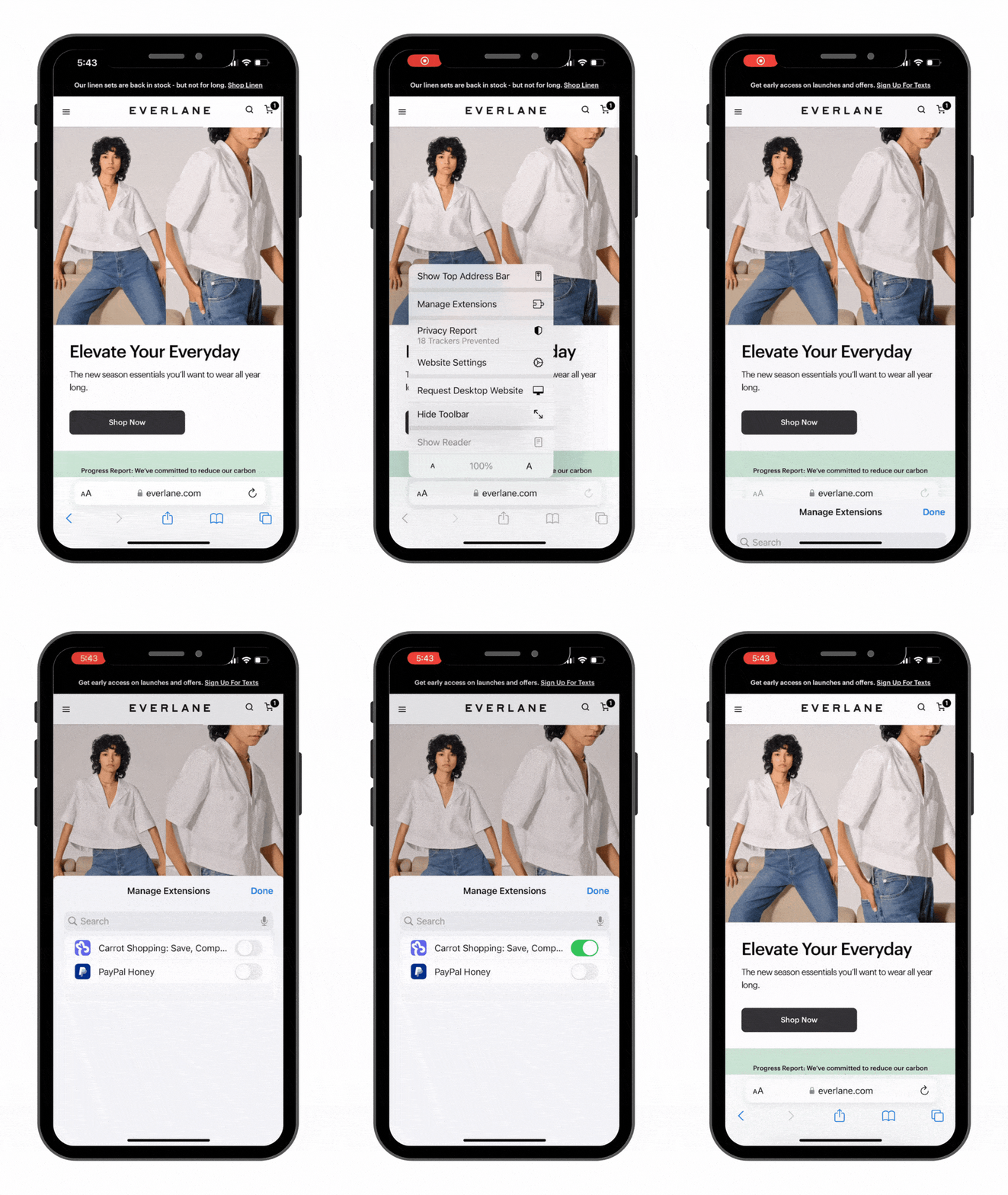
Step 2 (One time setup): Grant Access to Carrot
Once installed, you will need to grant Carrot access to the Carrot Extension in Safari.
- Tap the “Aa” icon in the address bar a second time
- Tap “Manage Extensions ⚠️”
- Tap “Allows Allow” to grant Carrot access to keep track of your carts going forward
- Tap “Always Allow on Every Website” to confirm the selection
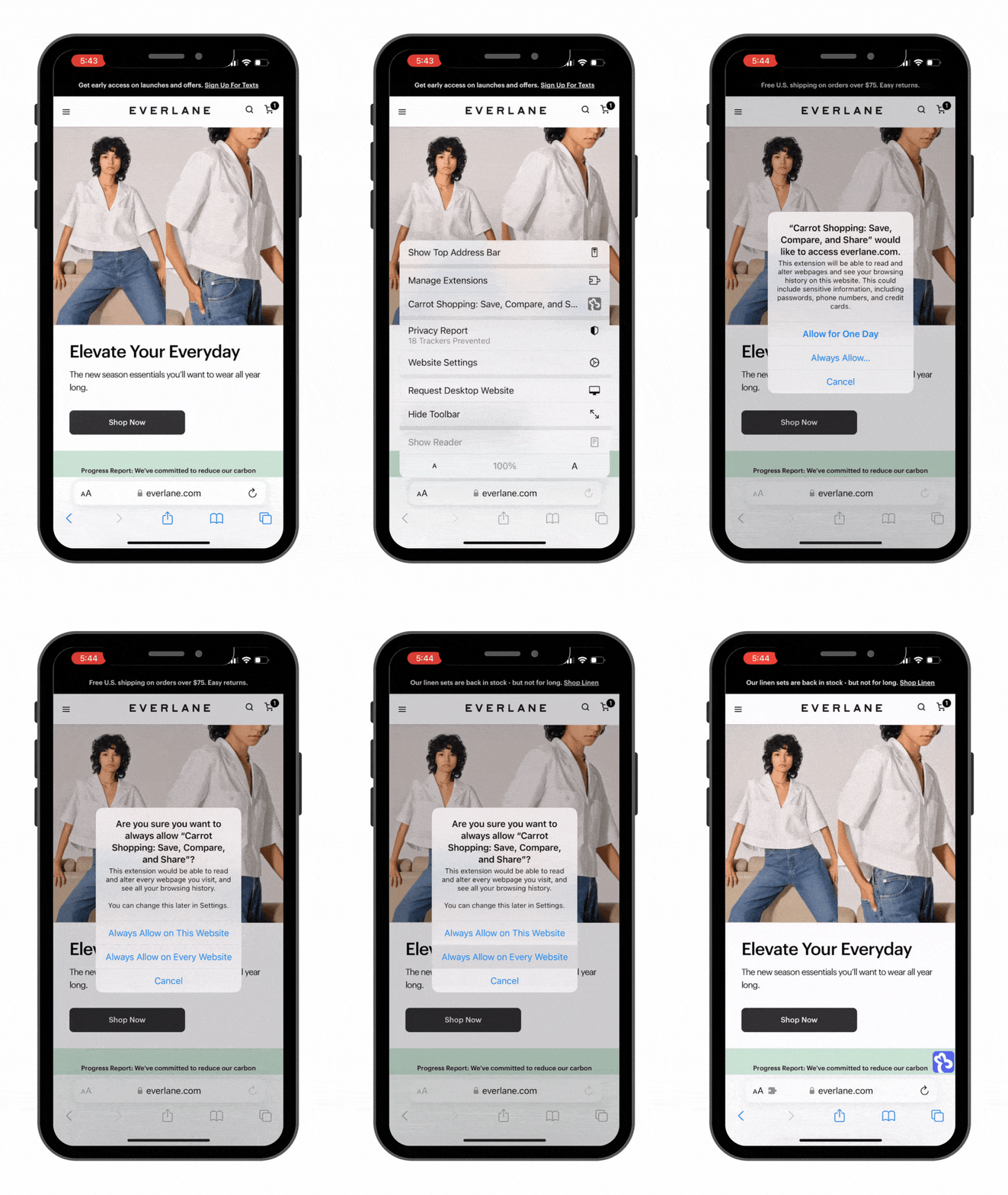
Step 3
Add to cart as you normally would, and Carrot takes care of the rest!
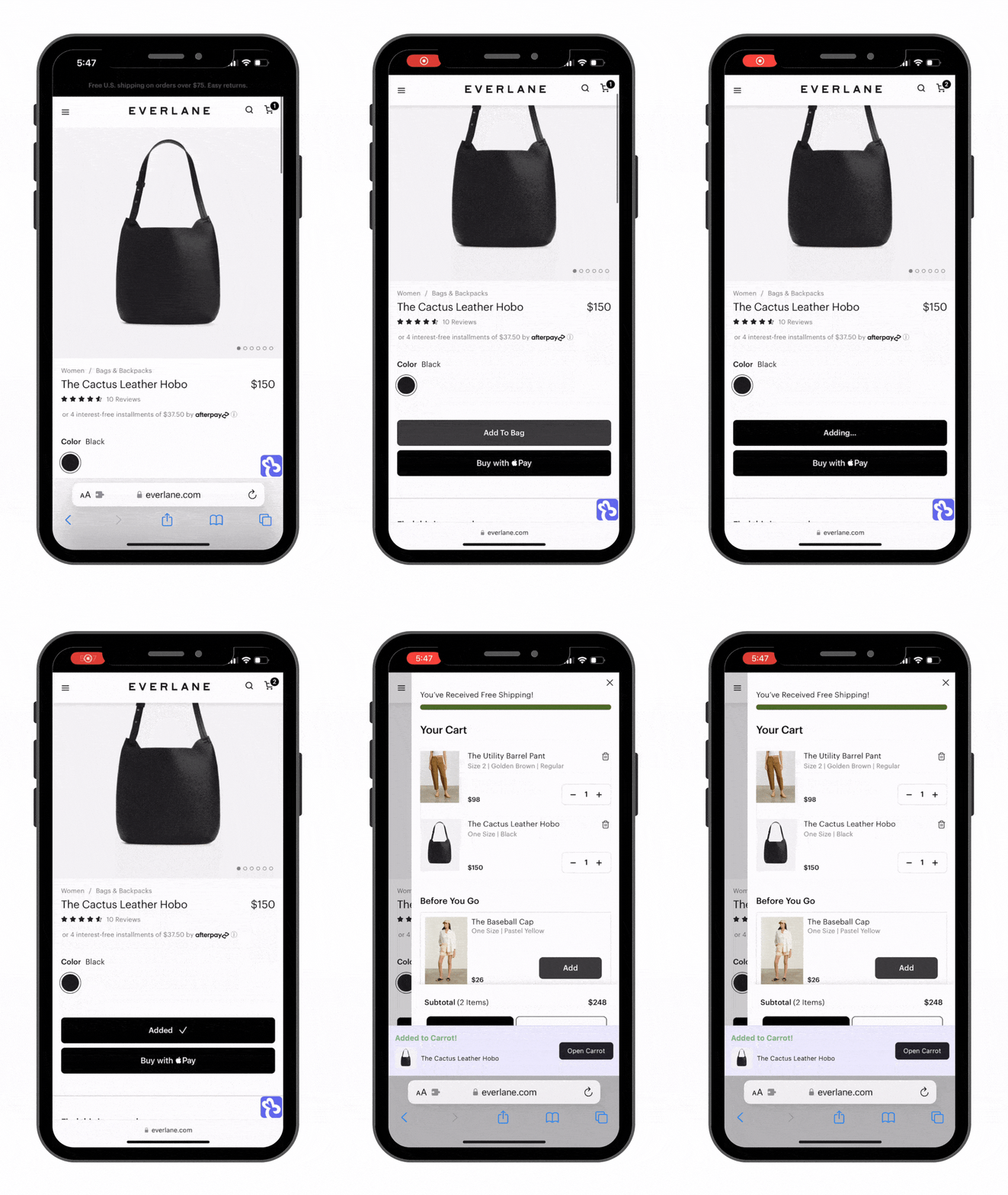
From the Desktop Extension
Option 1: Add to Cart 🛒
Option 2: Hover 🏄🏾
Option 3: By clicking on Carrot logo on the right side of the page
Option 4: Right Click 👆
From the Web App
Option 1: Add to Carrot via Link
Option 2: Add to Carrot via Search
Thoughts? Questions? Experiencing a hiccup? Email us at support@addtocarrot.com.
A team member will respond within 24 hours to lend a hand.